1. Digital menu QR code
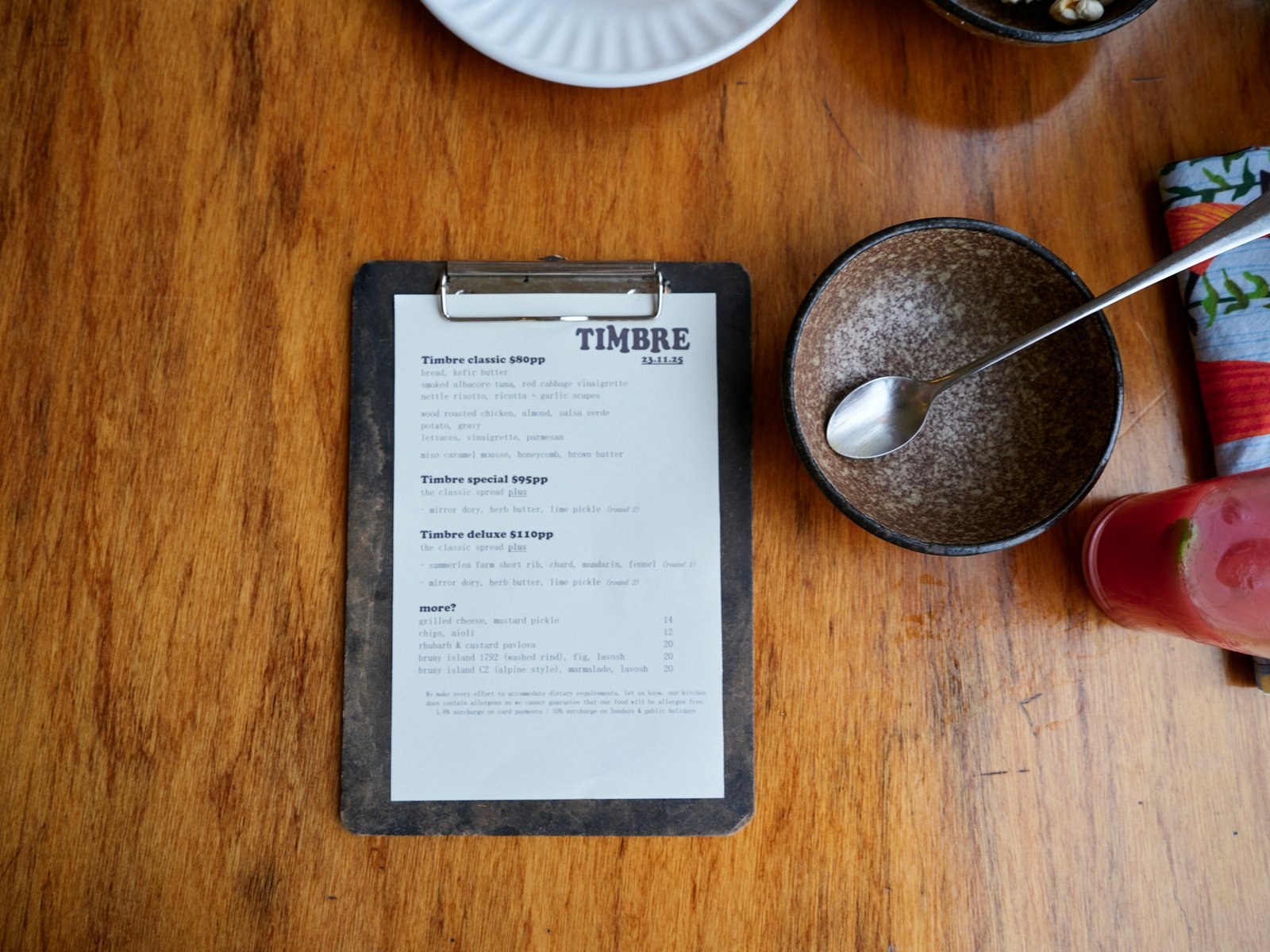
The most common restaurant QR code use case. A QR code on the table links to your online menu. Customers scan to browse; you update the menu URL whenever prices or items change - no reprinting required.
What to encode: your menu URL. This could be a PDF link, a Google Drive link, a dedicated menu page on your website, or a third-party menu service like Square, Toast, or a simple PDF hosted anywhere.
Use a dynamic QR code so you can swap the destination URL when menus change seasonally, daily, or for specials. Print a static QR code and your lunch menu is wrong every dinner service. Print a dynamic one and you update the URL in your QR dashboard - the printed code keeps working.
Placement: table tents, laminated cards clipped to a stand, the top of a paper placemat, or a sticker on the table surface. At minimum, one per table plus one at the host stand.
2. Contactless ordering QR code
If your POS supports web-based ordering (Square Online, Aloha, Toast, or a custom build), a QR code can take customers directly to an order form for their table. The customer scans, selects items, and the order routes to the kitchen - no server interaction required for the order itself.
This works best for casual dining, food halls, and quick-service formats. For full-service restaurants, it's common to use QR menus for browsing but still have servers take the order - combining the best of both.
Table identification: If you want orders tied to a specific table, encode a URL with a table parameter: https://yourrestaurant.com/order?table=7. The kitchen display or POS will show which table ordered. Create a separate QR code per table, each with its own table number in the URL.
3. Payment QR code
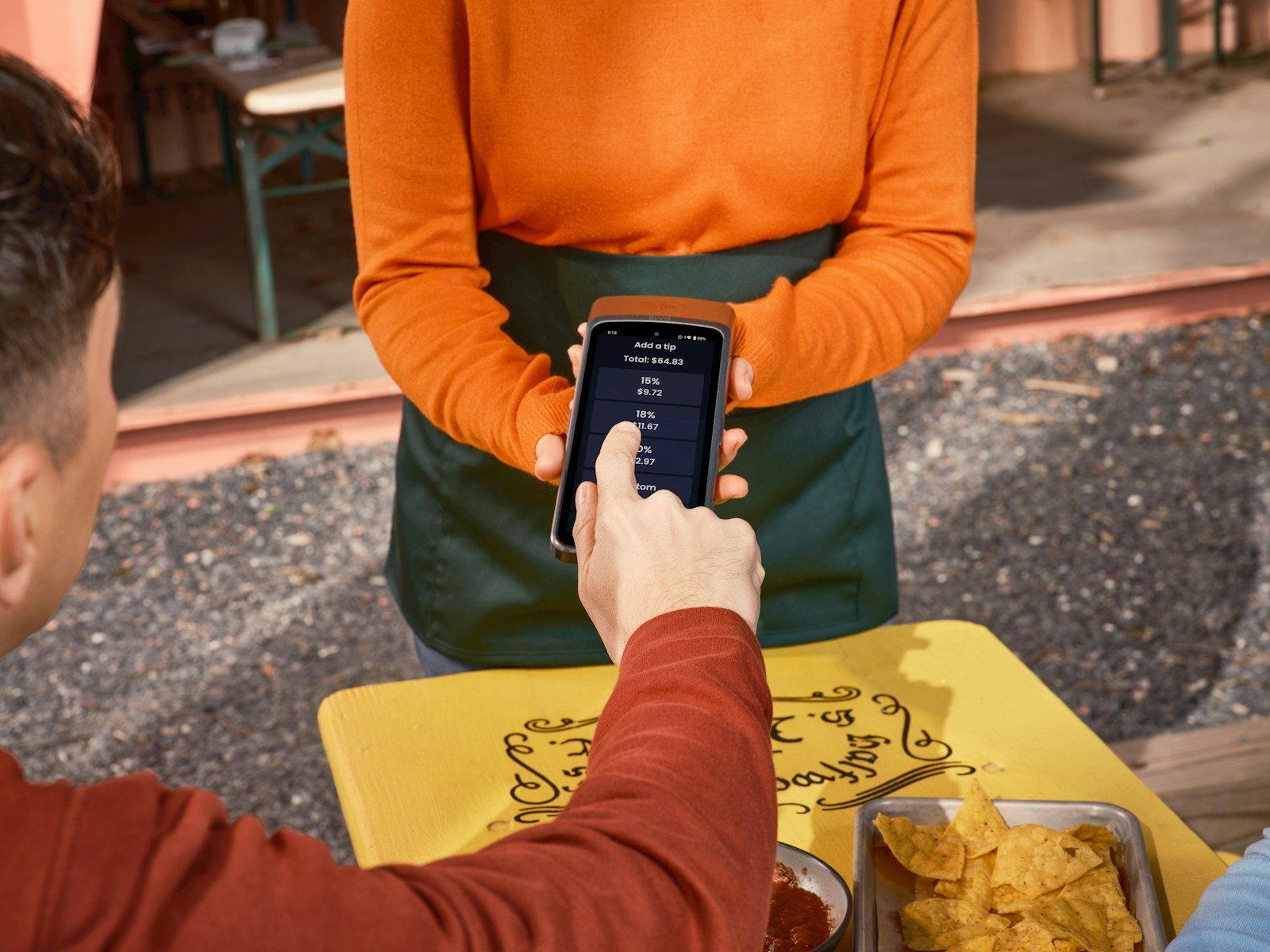
Placing a payment QR code on the table or check presenter lets customers pay when they're ready without waiting for a server to bring the card terminal.
Options by platform:
- PayPal.me - Encode
https://paypal.me/yourrestaurant/[amount]. Works for anyone with a PayPal account. - Venmo -
https://venmo.com/yourrestaurantopens a payment to your Venmo handle. - Square - Square's checkout links can be encoded as QR codes for a fixed-amount or variable payment.
- Stripe Payment Links - A Stripe payment link encoded as a QR code supports any card, Apple Pay, and Google Pay without a terminal.
For tipping, use a variable-amount link where the customer enters the amount. For fixed items (prix fixe, ticketed events), encode a fixed-amount link so customers can't underpay.
4. WiFi QR code for guests
Customers ask for the WiFi password at almost every café and casual restaurant. A QR code eliminates the ask entirely.
The format: WIFI:T:WPA;S:GuestNetwork;P:YourPassword;;
Print it on a table card or frame it near the entrance. Customers scan and connect instantly - iOS since iOS 11 and all modern Android versions support WiFi QR codes natively. No app required.
Security note: Use a separate guest SSID, not your POS or back-office network. Guest and operational traffic should never share a network segment.
See the full guide on WiFi QR codes for format details and special character escaping.
5. Google review QR code
Google reviews are one of the highest-impact things a restaurant can ask customers to do. The friction is usually the search - customers don't remember to search for your restaurant name, find the listing, and leave a review hours later when they get home.
A QR code on the check or table card that links directly to your Google review form eliminates that friction while the customer is still at the table and the meal is fresh.
How to get your Google review link:
- Log into your Google Business Profile.
- Go to Home → Get more reviews → Share review form.
- Copy the link. It looks like:
https://g.page/r/XXXXXXXXXX/review. - Encode that link as a QR code.
Place the QR on check presenters, receipts, takeout bags, or a small card on the table. A brief prompt helps: "Enjoyed your meal? Leave us a review" with the QR below.
Setup checklist for restaurants
- Create a free account at QR4Everyone.
- Create one dynamic QR code for your menu URL. Use a recognizable slug like
qr4everyone.com/yourvenue-menu. - Create a second QR for your Google review link.
- If you want WiFi, create a static QR for your guest SSID using the
WIFI:format above. - Download all QR codes as PNG. Drop them into Canva, Adobe, or any design tool to add your logo and print-ready formatting.
- Print at minimum 300 DPI. At a 5 cm (2 inch) print size, a QR code at 300 DPI gives clean, reliably scannable results.
- Test every printed code before placing on tables. Scan from multiple angles and distances.